Creating slides used to be a slow, painful process for anyone who wasn't a professional slide designer. Now, with new AI tools, you can start with a simple prompt or doc and get beautifully designed slides in a couple of minutes.
This guide walks you through some of the best AI tools for Google Slides, how they work, and which ones are best for how you use slides.
Why use AI in Google Slides?
As a former management consultant who spent hundreds of hours formatting slides, the easiest answer to this question is so we can pass off the "manual" work in slides to AI, so humans can focus on the overall story and how to connect with the audience.
More specifically, AI is a fantastic way to quickly:
- Turn a document that you already wrote into a slide deck
- Structure your thoughts in a cohesive way
- Give you a first draft of slides that you can customize and tweak
- Make sure you have consistent visuals that look great
In case studies with customers of AI presentation tools, companies say they can reduce the amount of time spent on creating and formatting slides by more than 60%, especially for repetitive tasks.
Types of Google Slides AI
There are 4 main types of Google Slides AI tools.
- Google Slides AI - AI tools built directly into Google Slides
- General purpose Google AI tools - Google-related tools that offer presentations as an optional output
- External AI presentation tools - AI tools that create presentations, which may integrate with Google Slides
- Use-case specific AI tools - AI tools that offer specific functionality related to presentations and slides
Here's our quick summary of the best AI tools in each of these categories:
- Best AI for Google Slides - Plus AI
- Best Google AI tool for research - NotebookLM
- External AI presentation tool - Canva
- Use-case specific AI tools - Depends on what you're looking for (e.g., Chartbuddy for charts, or Templafy for template management)
Google Slides AI
The two leading AI tools for Google Slides are Plus AI and Gemini for Google Slides.
Plus AI is an add-on that can be installed via the Google Workspace Marketplace, and Gemini is the integrated AI that you can open up from directly within Google Slides. Here is a walkthrough of each tool:
Plus AI
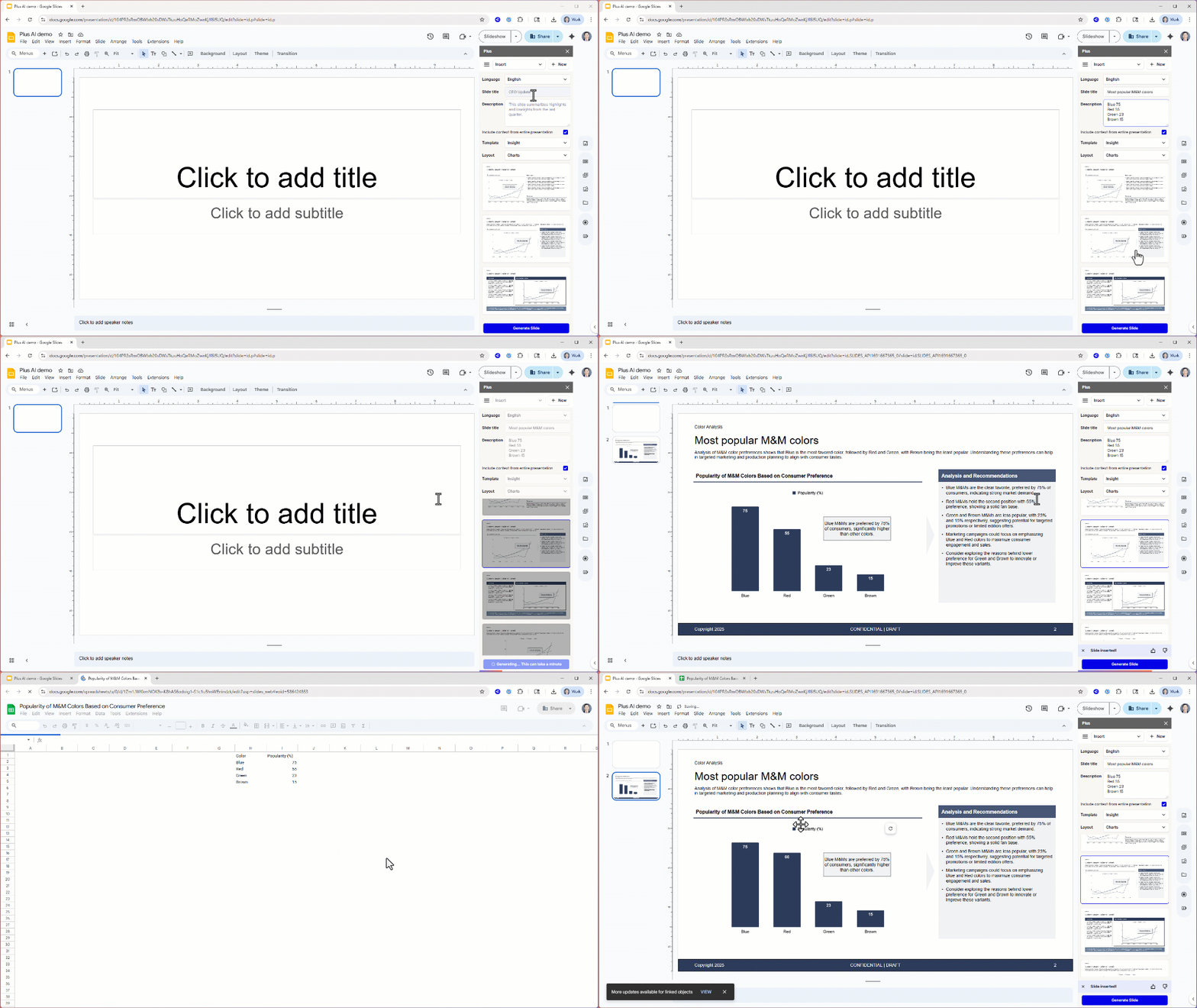
Plus AI is a native add-on for Google Slides designed for professional presentation makers.
It creates fully-editable Google Slides using native elements like text boxes, shapes, images, icons, and charts, so everything just works like a normal slide. For enterprise teams, Plus AI also supports custom presentation templates, so everyone on your team can instantly create on-brand presentations using AI.
The main benefit of Plus AI is speed and compatibility. You can generate a first draft from a prompt or document, quickly turn notes or transcripts into structured slides, and then refine or update the content directly in Google Slides as you would a deck that a coworker sent you.
If your team already uses Google Slides and you want to introduce AI without changing your workflow, Plus AI is the easiest way to get started.
Gemini for Google Slides
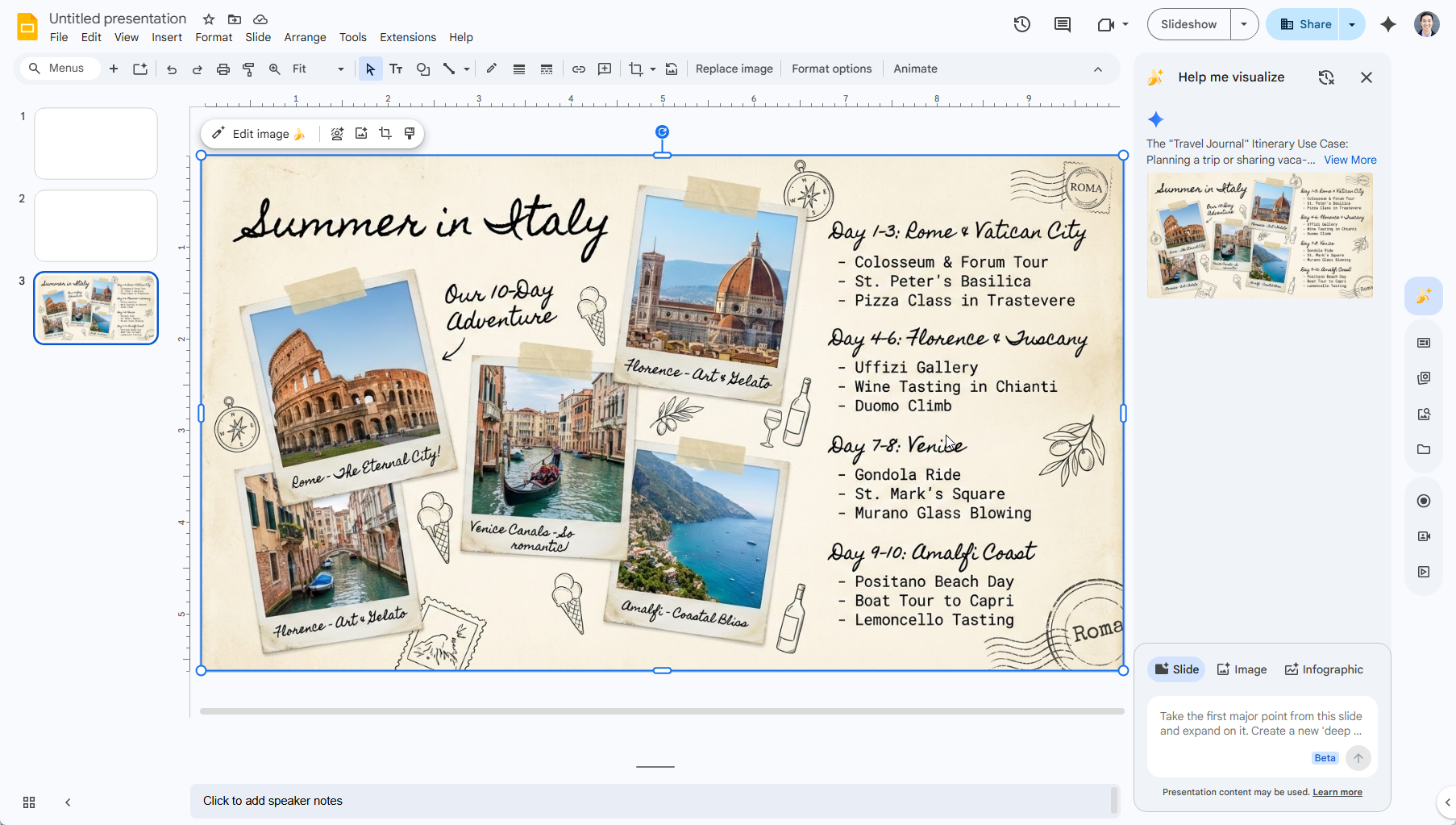
Gemini is the name of Google's AI assistant, and it is also directly integrated into Google Slides. You can access Gemini by clicking on the four-pointed star or the banana emoji (depends on which version of the UI you have).
Gemini takes a different approach to creating "slides" compared to most AI presentation tools. Instead of creating editable slide elements like text boxes, shapes, and charts, it uses Google's image generation model (called Nano Banana) to generate slides as images.
Basically, what this means is instead of generating a standard slide with title, body text, and other slide elements, it will write a prompt for Nano Banana, generate an image, and then insert that image into your presentation.
While this creates really unique layouts and designs, it also means that it can be difficult to edit the slides and ensure a consistent look and feel throughout a presentation. This is great for certain types of visuals like infographics, but you probably want to use a tool like Plus AI if you are making standard "slides" for a work or school presentation.
General purpose Google AI tools
There are several other Google AI tools which have the ability to generate slides and are worth exploring.
NotebookLM
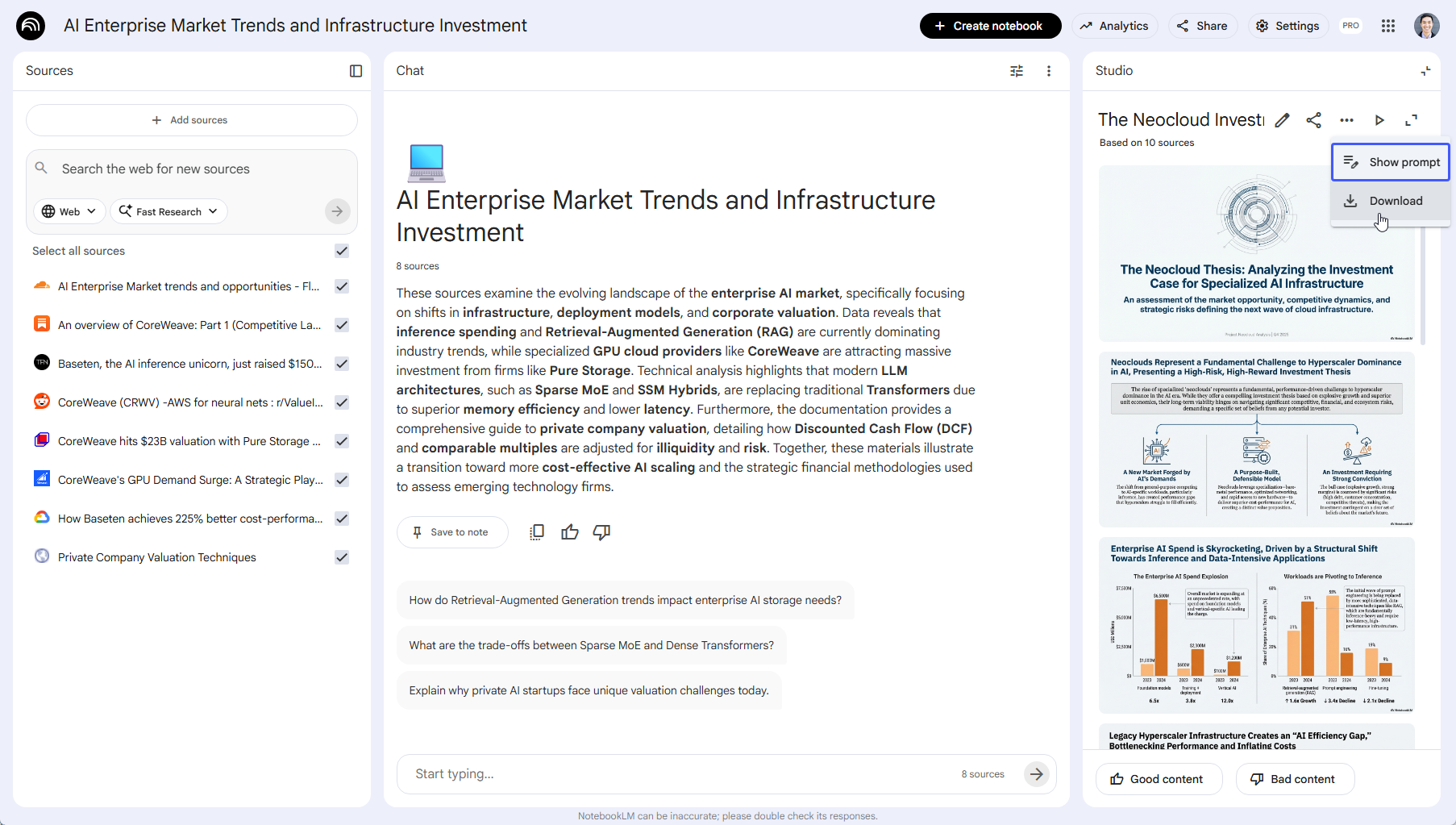
One of the most unique products is NotebookLM, which is a special app designed for research and synthesis. You can upload and organize multiple information sources like docs, PDFs, websites, and videos, and then generate outputs like podcasts or slide decks.
Unfortunately, the slide decks created in NotebookLM have the same limitation as Gemini in Google Slides, where the individual slides are composed of images. This means that when you download the deck it becomes a static PDF or a set of non-editable slides in Google Slides, and the visual consistency is not great across the deck.
Gemini chatbot
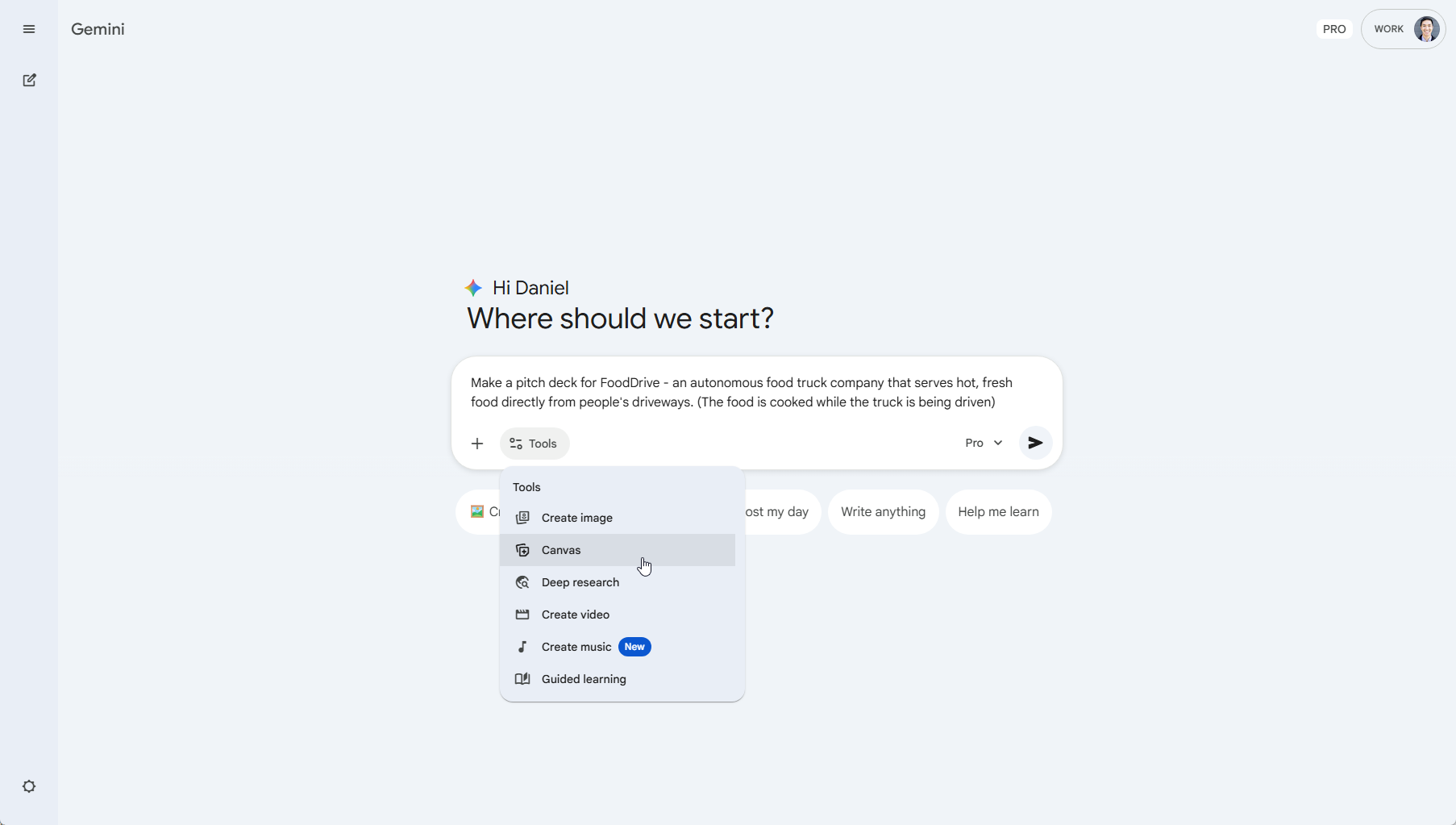
Another way to create slides using Google AI tools is via the standalone Gemini app. In the Gemini app, click the "Canvas" button when typing in your prompt, and Gemini will be able to make slides for you.
To turn them into editable Google Slides, click the button to "Export to Slides." The Gemini app will then go through some sort of export and upload process, and then it will open up a new Google Slide deck with mostly editable slides (certain things like graphs might be uneditable images) that you can work with like a normal slide deck.
Overall, the Google AI experience can feel fragmented, with multiple ways to generate slides across Gemini and Google Slides that behave differently.
If you're looking for a more consistent and predictable workflow, it's usually easier to use a dedicated AI tool built specifically for Google Slides, such as Plus AI.
External AI presentation tools
In addition to the native AI tools for Google Slides, you may have also heard of tools like Canva or Beautiful.ai for making presentations using AI.
These tools are also great AI tools, and they can speed up the process of making presentations. However, the main drawback is that they do not have native integrations to Google Slides, so exporting presentations can lead to formatting issues, broken layouts, or elements that aren't fully editable.
Here are some of the most popular non-Google Slides AI tools:
Canva
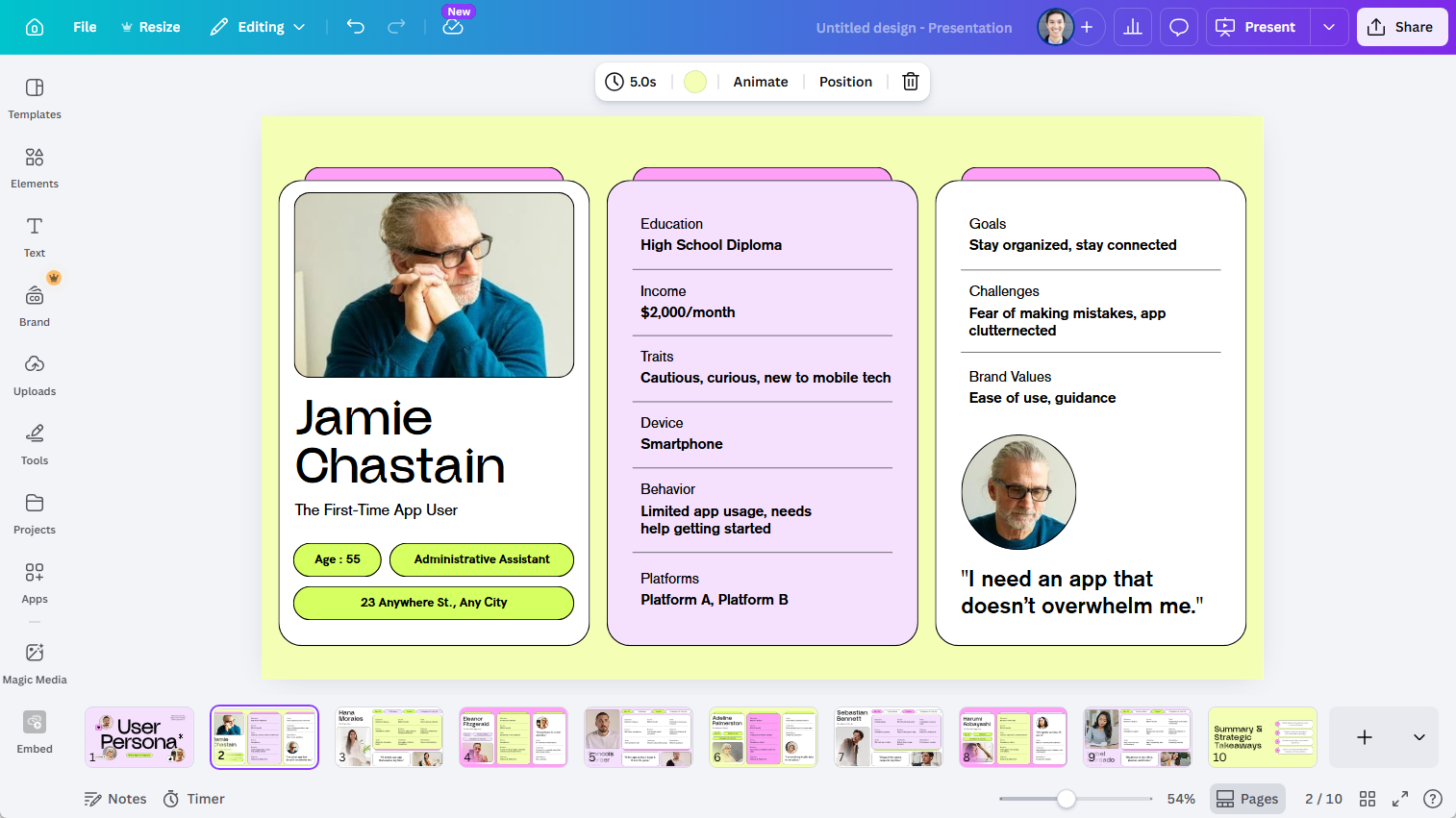
Canva is one of the most popular design tools in the world, and it offers a number of different AI presentation features.
The primary benefit of Canva is that it leans heavily into well-designed templates and stock assets. You can choose from a wide range of pre-defined slide types, which makes the outputs look quite good.
However, Canva is more design-first than content-first. Its AI-generated text is often lightweight, and it lacks the more advanced generation capabilities of tools like Google's image models or the structured, professional slide outputs you get from tools like Plus AI. As a result, Canva works best when you can find a strong template from their library.
Beautiful.ai
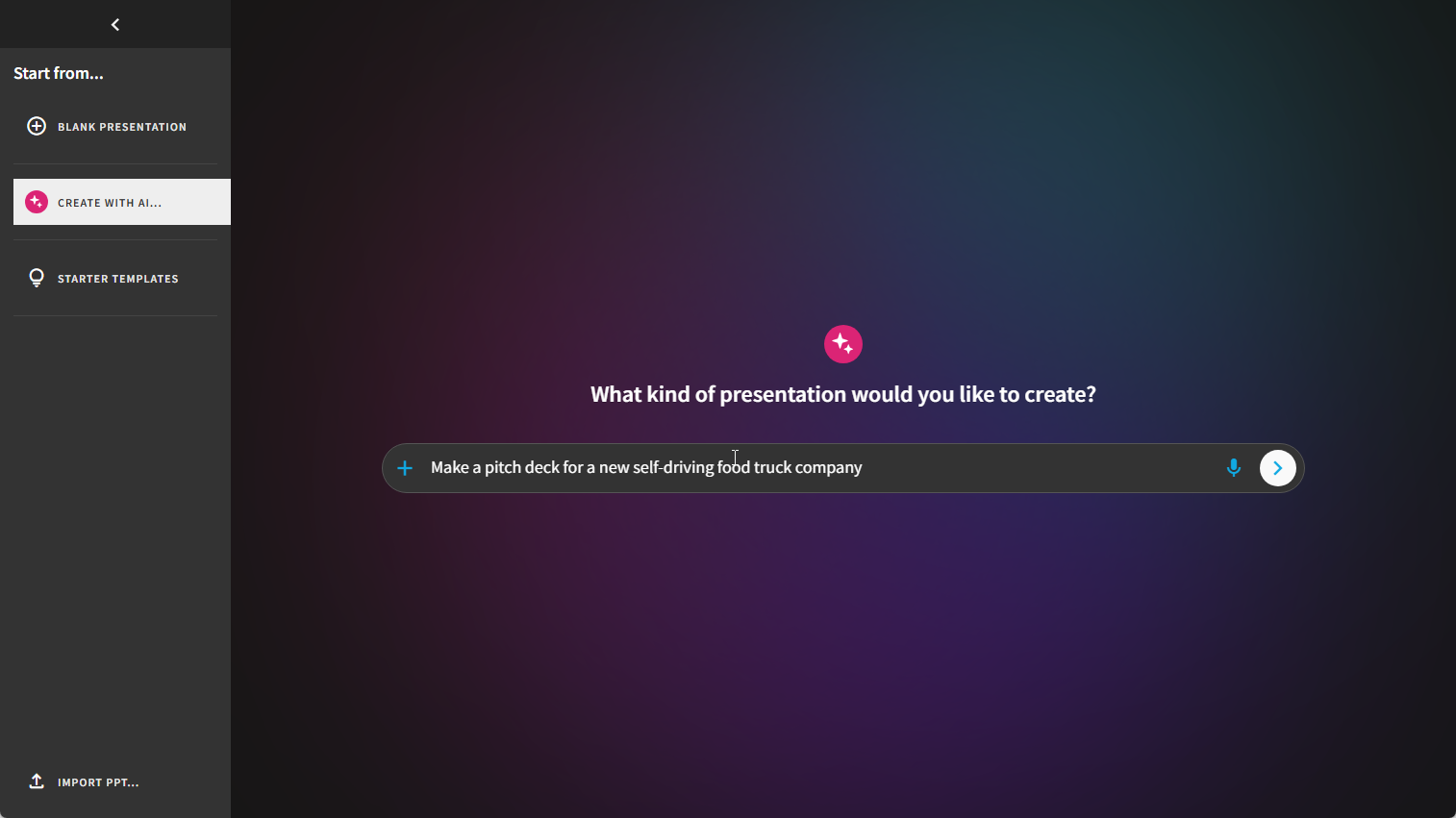
Beautiful.ai is an AI presentation tool designed to simplify slide design. Instead of manually adjusting layouts, you work at a higher level - adding elements like columns, charts, or content blocks - and the platform automatically handles spacing, alignment, and formatting.
Beautiful.ai is particularly strong at generating clean, professional-looking slides using standard business layouts. However, because it's a standalone tool and not integrated with Google Slides, it can be difficult to use as part of a Google Slides-based workflow. It's worth considering if you want to adopt a different presentation tool altogether but less practical if the rest of your team will be staying in Google Slides.
Use-case specific AI tools
There are several AI tools that can be used in conjunction with Google Slides to add additional functionality to the existing Google Slides feature set. Some of our favorites include:
- Chartbuddy - Make it easier to build professional charts with power-user features inside of Google Slides. Supports waterfall charts, mekko charts, bar graphs, line graphs, scatter plots, and more. See our comparison of chart creation tools for a deeper look.
- AI Presentation Narrator - Turn any slide deck into an AI-narrated video by having the AI read the speaker notes
- Auto LaTeX Equations - Quickly render and unrender equations into LaTeX graphics
Other notable tools include Lucidchart for diagrams, and think-cell for PowerPoint users who need advanced charting capabilities. There are dozens of different use-case specific tools for Google Slides, and the best way to find them is to search the Google Workspace Marketplace (or just ask your favorite AI tool!).
Conclusion
The best way to learn how to use AI in Google Slides is to start introducing it into your workflows one step at a time. Some tools will help you make pretty slides, some tools will help give you new design ideas, and other tools will be able to help with specific tasks like summarizing content, creating well-formatted charts, or turning PDFs into slide decks.
The key is not to expect one tool to do everything perfectly (at least not yet!). Instead, think of AI as a set of helpers you can use at different stages of the presentation process. Over time, the biggest benefit will be better slides, better productivity, and more mastery of AI in automating your work.
For more on what makes a great presentation, check out our article on Tufte's principles for graphical integrity and our guide on choosing between bar graphs and histograms.