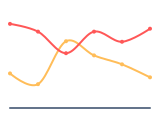
Line graph - definition, examples, and best practices.
To create a line graph in Google Slides, install Chartbuddy from the Chrome Web Store, open your presentation, select your data, and choose the line chart type. Chartbuddy supports multi-series lines, custom formatting, data labels, and live Google Sheets sync - all built natively inside your slide.
What is a line graph?
A line graph connects data points with a continuous line to show how values change over a continuous interval, typically time. The x-axis represents the interval (days, months, quarters), the y-axis represents the measured value. The slope of the line immediately tells the reader whether something is growing, declining, or flat - making it one of the most intuitive chart types in data visualization.
Line graphs are particularly effective when you have many data points and want to emphasize the overall trend rather than individual values. Multiple lines can be plotted on the same chart to compare trends across categories - for example, revenue by product line over the same time period.
When to use a line graph
Line graphs work best when your data is sequential and continuous. Typical use cases in a business context:
- Performance tracking - monthly recurring revenue, customer growth, NPS scores over time
- Forecasting - plotting actuals alongside projections to show whether you're on track
- Comparison over time - overlaying two or more series (e.g., this year vs last year, or product A vs product B) to spot divergence
- Board decks and investor updates - line graphs are the standard for showing growth trajectories in executive presentations
Avoid line graphs when your categories are not sequential (use a bar graph instead) or when you have very few data points (a bar graph or table may be clearer).
Line graph vs area chart
A line graph and an area chart show the same data - the difference is that an area chart fills the space below the line. Use a line graph when you want to emphasize rate of change. Use an area chart when you want to emphasize volume or magnitude.
Best practices
- Start the y-axis at zero unless you have a good reason not to - truncated axes exaggerate trends and can mislead your audience
- Limit to 4-5 lines maximum. Beyond that, the chart becomes unreadable. If you need more, consider small multiples or highlighting only the key series
- Use clear, distinct colors for each line. Avoid relying on legend alone - label lines directly where possible
- For time series data with regular intervals, make sure the spacing on the x-axis is consistent. Irregular spacing distorts the perceived trend
Create line graphs in Google Slides with Chartbuddy
Build professional line graphs directly in your presentation - no external editors, no copy-pasting from Sheets. Edit data inline, customize colors and formatting, and keep your charts synced with Google Sheets for automated updates.
No credit card required · Chrome & Edge