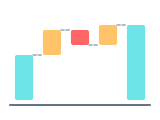
Waterfall chart - definition, examples, and best practices.
To create a waterfall chart in Google Slides, install Chartbuddy from the Chrome Web Store, open your presentation, select your data range, and choose the waterfall chart type. Chartbuddy builds the chart natively inside your slide with floating bars, automatic color coding, connector lines, and live Google Sheets sync.
What is a waterfall chart?
A waterfall chart shows how a starting value is affected by a series of positive and negative changes to arrive at a final value. Each bar "floats" above or below the previous one, creating a visual bridge between the start and end points. Increases are shown in one color, decreases in another, and totals are typically anchored to the baseline.
Waterfall charts are sometimes called bridge charts or cascade charts. They're a staple in financial analysis and consulting because they answer a question that comes up constantly: "What changed, and why?"
When to use a waterfall chart
Waterfall charts are ideal whenever you need to explain variance - the difference between two states. Typical use cases:
- Financial bridge analysis - showing how EBITDA, revenue, or profit bridges from one period to the next, breaking out the contributing factors (volume growth, price increases, cost changes, one-off items)
- Budget vs actuals - visualizing where you over- or under-spent relative to plan, category by category
- Cash flow analysis - walking from opening cash balance through inflows and outflows to closing balance
- Scenario modeling - showing the incremental impact of each assumption on a forecast or business case
Waterfall charts work best when you have a clear starting point, a clear ending point, and a series of discrete changes in between. They're less useful for time series data (use a line graph) or for comparing unrelated categories (use a bar graph).
How to read a waterfall chart
Read left to right. The first bar is your starting value (e.g., last year's revenue). Each subsequent bar shows an increase (typically green or blue, going up) or a decrease (typically red, going down). The final bar shows the ending value. The "floating" bars in between represent the size and direction of each individual change.
Best practices
- Use consistent color coding - one color for increases, another for decreases, a third for totals. Your audience should be able to read the chart without a legend
- Order the intermediate bars logically. Group related items together (all revenue drivers, then all cost drivers) rather than mixing them randomly
- Include data labels on every bar. Waterfall charts are often used in executive presentations where precision matters - your CFO will want to see the numbers
- Add subtotals where helpful. If you have many items, inserting subtotal bars (e.g., "total revenue impact" before moving to costs) makes the narrative easier to follow
- Keep it to 8-12 bars maximum. Too many intermediate steps make the bridge hard to follow. If you have more, consider grouping smaller items into an "Other" category
Create waterfall charts in Google Slides with Chartbuddy
Build professional waterfall charts directly in your presentation. Chartbuddy handles the floating bars, color coding, and connector lines - so you can focus on the story your data tells.
No credit card required · Chrome & Edge