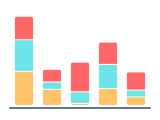
Bar graph - definition, examples, and best practices.
To create a bar chart in Google Slides, install Chartbuddy from the Chrome Web Store, open your presentation, select your data, and choose from stacked, clustered, or 100% bar chart layouts. Chartbuddy renders the chart natively inside your slide with full formatting control and live Google Sheets sync.
What is a bar graph?
A bar graph uses horizontal or vertical bars to compare values across categories. Each bar represents a category, and its length or height corresponds to its value. Bar graphs are one of the most common and versatile chart types - effective precisely because they're simple to read. The human eye is very good at comparing lengths, which makes differences between categories immediately obvious.
Bar graphs come in several variations, each suited to a different type of comparison:
- Standard bar graph - one bar per category. Best for straightforward comparisons (revenue by region, headcount by department)
- Stacked bar graph - each bar is divided into segments, showing both the total and its composition. Useful for showing how sub-categories contribute to the whole (revenue by region, broken down by product)
- Clustered bar graph - multiple bars side by side for each category, making it easy to compare sub-categories directly (Q1 vs Q2 vs Q3 per region)
- 100% bar graph - every bar is normalized to the same length, showing percentage composition rather than absolute values. Best for comparing proportions across categories (market share by competitor over multiple years)
When to use a bar graph
Bar graphs work best when your categories are discrete (not continuous) and you want to compare values between them. Typical use cases:
- Business reviews - comparing KPIs across teams, regions, products, or time periods
- Survey results - showing response distributions across categories
- Financial reporting - revenue, cost, or margin comparisons across business units
- Benchmarking - comparing your company's performance against competitors or industry averages
Use a bar graph over a line graph when your categories don't have a natural sequential order. If the x-axis isn't time or a continuous scale, a bar graph is almost always the right choice.
Horizontal vs vertical bars
Vertical bars (also called column charts) are the default. Use horizontal bars when your category labels are long (they're easier to read horizontally) or when you're ranking many categories from top to bottom - horizontal bars naturally suggest a ranked list.
Best practices
- Start the y-axis at zero. Truncating the axis exaggerates differences and undermines credibility, especially in executive presentations
- Order bars intentionally. For ranked data, sort largest to smallest. For time-based categories (months, quarters), keep chronological order
- Use consistent colors unless color is encoding a specific variable. Avoid rainbow bar charts where every bar is a different color for no reason
- Add data labels directly on or near the bars for precision - this is especially important in printed decks or presentations where the audience can't hover over the data
- Keep spacing between bars consistent. The gap between bars should be narrower than the bars themselves
Bar graph vs histogram - A common confusion: a bar graph compares discrete categories (product A, product B, product C). A histogram shows the distribution of continuous data grouped into bins (0-10, 10-20, 20-30). Histograms have no gaps between bars because the bins are contiguous ranges.
Create bar graphs in Google Slides with Chartbuddy
Build professional bar graphs - standard, stacked, clustered, or 100% - directly in Google Slides. Edit data inline, customize formatting to match your brand, and keep charts synced with Google Sheets.
No credit card required · Chrome & Edge