Pareto chart - definition, examples, and best practices.
To create a Pareto chart in Google Slides, install Chartbuddy from the Chrome Web Store, open your presentation, select your data, and choose the Pareto chart type. Chartbuddy combines descending bars with a cumulative percentage line, built natively inside your slide with live Google Sheets sync.
What is a pareto chart?
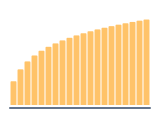
A pareto chart ranks categories from largest to smallest as bars, with a cumulative percentage line overlaid on top. As you read from left to right, the bars get smaller and the line climbs toward 100%. The chart is based on the Pareto principle (the 80/20 rule) - the idea that roughly 80% of effects come from 20% of causes.
The power of a pareto chart is that it answers two questions at once: which categories are the biggest contributors, and how many categories does it take to account for the majority of the total. This makes it a go-to tool for prioritization - quickly showing your audience where to focus.
When to use a pareto chart
Pareto charts are widely used in quality management, operations, and strategic planning. Typical use cases:
- Root cause analysis - identifying which defect types or failure modes account for most of the quality issues
- Customer support prioritization - showing which complaint categories drive the majority of tickets, so the team can focus improvement efforts
- Cost optimization - ranking cost line items to show which ones make up 80% of total spend
- Sales concentration - visualizing how much revenue comes from the top 10% of clients, useful for account management strategy
Pareto charts work best when you have a finite number of discrete categories that you want to rank. They're less useful for time-based data (use a line graph) or for showing composition (use a stacked bar or pie chart).
How to read a pareto chart
Read the bars from left to right - they show individual contribution, ranked from largest to smallest. Read the cumulative line to see the running total. The point where the line crosses 80% tells you which categories (from the left) account for the bulk of the impact. Everything to the right of that point is the "long tail."
Best practices
- Always sort bars from largest to smallest (left to right). An unsorted pareto chart defeats the purpose
- Include the cumulative percentage line - without it, you just have a sorted bar chart
- Use a secondary y-axis for the percentage line (0-100%) and a primary y-axis for the bar values
- Highlight the 80% threshold with a horizontal reference line. This makes the "vital few vs trivial many" split immediately visible
- Keep the number of categories manageable. If you have 30+ categories, consider grouping the smallest ones into an "Other" bucket
Create pareto charts in Google Slides with Chartbuddy
Build professional pareto charts directly in your presentation. Chartbuddy handles the ranking, cumulative line, and dual-axis formatting - so you can focus on the analysis, not the formatting.
No credit card required · Chrome & Edge