When your Google Sheets data changes, your Chartbuddy charts need to be refreshed to reflect the new numbers. There are two ways this happens.
Auto-update
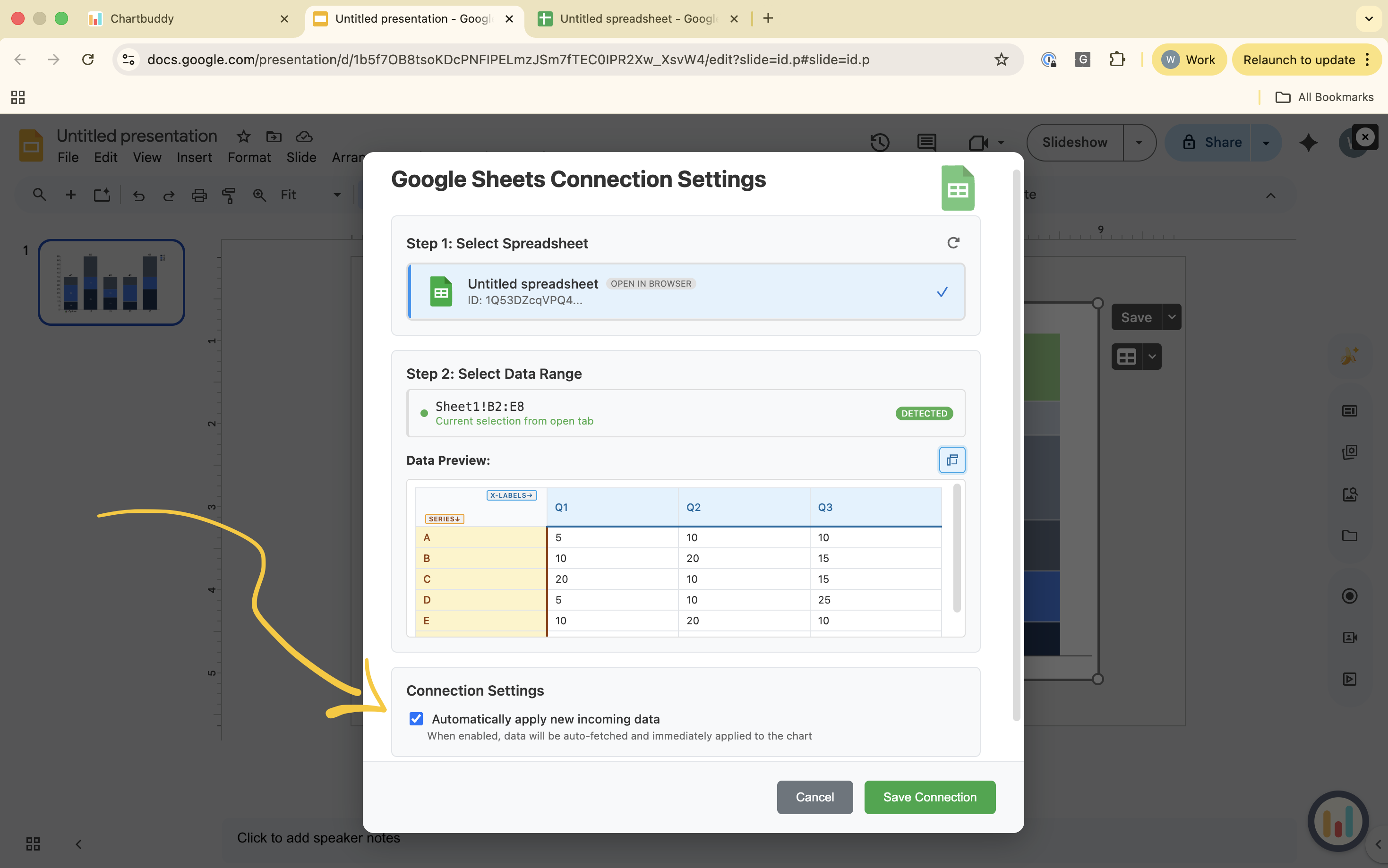
If auto-update is enabled for a chart, Chartbuddy automatically pulls the latest data from the linked spreadsheet whenever you open the presentation. You don't need to do anything.
To enable auto-update:
- Open the sheet/range selection menu for the chart
- Toggle auto-update on
Manual refresh
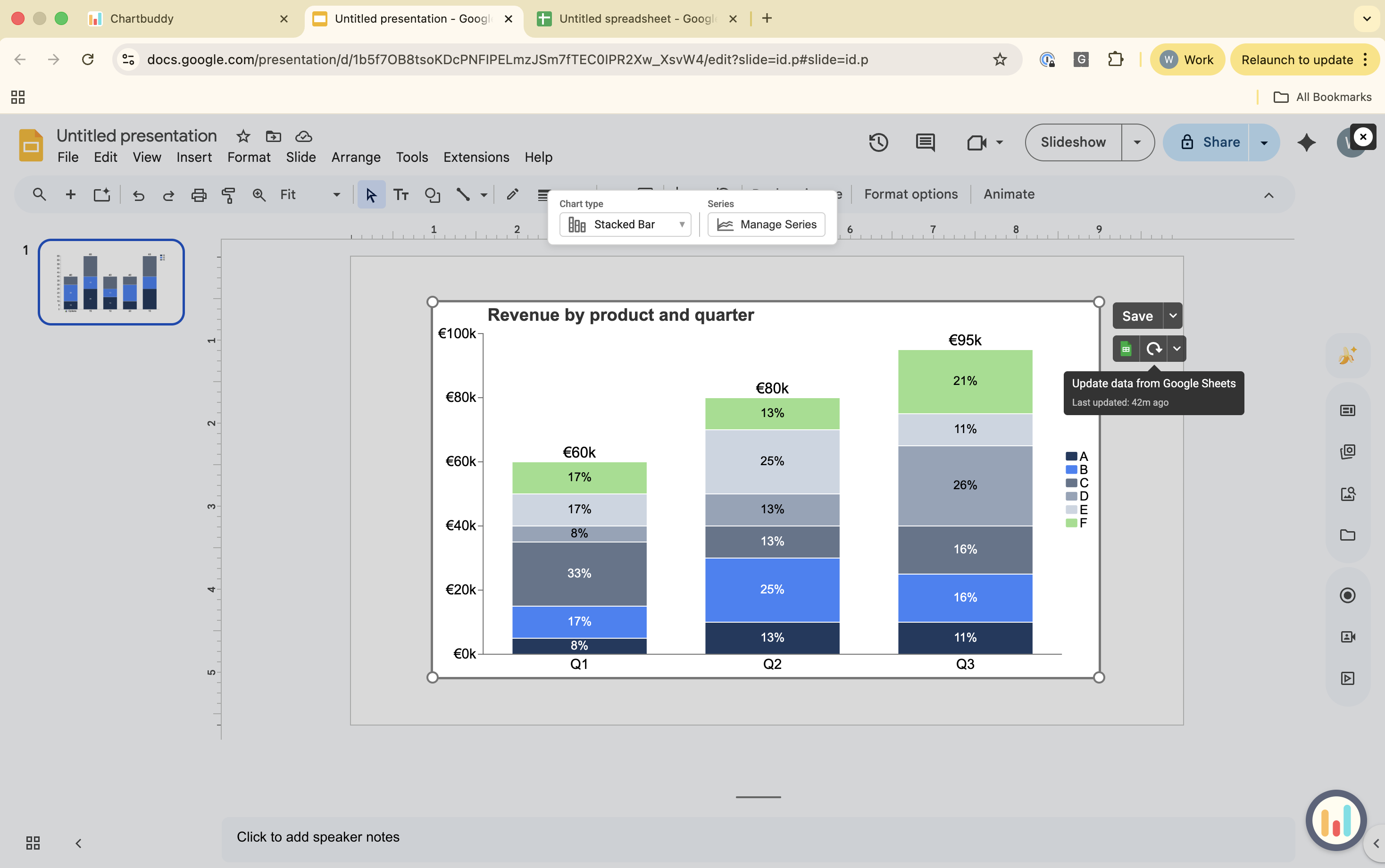
If auto-update is off, or if you've just made changes to your spreadsheet and want to see them immediately:
- Click the refresh button next to the Google Sheets logo
The chart updates instantly with the latest data.
When to use which
- Auto-update for dashboards, monthly reports, and any deck that should always show the freshest numbers
- Manual refresh when you want to freeze the data at a specific point in time - for example, locking numbers before a board presentation